iOS Quickstart Guide#
This guide takes a new native iOS integration from an empty screen to a visible row of published Storyteller Stories. Choose either the complete UIKit or SwiftUI path below, then use the Showcase app and component guides for more advanced integrations.
For Apple TV, use the dedicated tvOS Guide.
Before You Start#
You need:
- An iOS deployment target of 13.0 or later. We test the current SDK line with Xcode 26.2; earlier Xcode versions may also work, but they are not part of our tested configuration. The example apps have separate Showcase build requirements.
- A Storyteller API key for the tenant and environment you are integrating. Ask your Storyteller contact if you do not have one.
- A Story category identifier from the same tenant and environment. Ask your Storyteller contact which category should power your first row if this is not already part of your content setup.
- At least one Story assigned to that category and published in the Storyteller CMS. Draft, scheduled, expired, or otherwise unavailable content will not appear.
- A stable, non-personally-identifiable ID for the current user. The examples use
<USER_ID>; see Working with Users before choosing a production identifier. - If you plan to use the linked implementation examples, an authorised GitHub account with access to the private iOS Showcase source.
Keep the API key, category identifier, and published content in the same tenant and environment. A valid key cannot load a category from another tenant.
Install the SDK#
Swift Package Manager (Recommended)#
- In Xcode, open File > Add Packages….
- Enter
https://github.com/getstoryteller/storyteller-sdk-swift-package. - Add the
StorytellerSDKproduct to your app target.
The package resolves StorytellerLottie 4.6.0 transitively, so you do not need to add StorytellerLottie separately. If your app also uses upstream Airbnb Lottie, keep it as its own dependency; its Lottie module can coexist with Storyteller's namespaced StorytellerLottie module.
CocoaPods#
Add the Storyteller sources and SDK to your Podfile:
source 'https://github.com/getstoryteller/storyteller-sdk-ios-podspec.git'
source 'https://github.com/getstoryteller/storyteller-lottie-ios-podspec.git'
source 'https://cdn.cocoapods.org/'

use_frameworks!

target 'MyAwesomeApp' do
  pod 'StorytellerSDK'
end
Both Storyteller source lines are required: the first contains the SDK podspec and the second contains its StorytellerLottie dependency. The CocoaPods CDN supplies public dependencies.
Then run pod install and open the generated .xcworkspace, not the .xcodeproj. CocoaPods installs StorytellerLottie transitively, so you do not need to add it separately. If your app also uses upstream Airbnb Lottie, keep it as its own dependency; it can coexist with StorytellerLottie.
XCFrameworks#
- Download and unzip
StorytellerSDK11.8.0. - Download and unzip
StorytellerLottie4.6.0. - Add
StorytellerSDK.xcframeworkandStorytellerLottie.xcframeworkto the same app target.StorytellerLottieis required by the SDK. If your app also uses upstream Airbnb Lottie, include it separately; it can coexist withStorytellerLottie, but it does not replace it. - In the app target's General > Frameworks, Libraries, and Embedded Content section, select Embed & Sign for both XCFrameworks.
Add Your First Stories Row#
Replace these placeholders before running either example:
<API_KEY>: the API key supplied for your Storyteller tenant and environment.<USER_ID>: a stable, non-personally-identifiable identifier for the current user.<CATEGORY_ID>: a category that contains at least one currently published Story.
Both examples deliberately finish Storyteller.shared.initialize(...) before configuring and loading the row. They also expose initialization, loading, empty, failure, and success states so a blank screen is not the only diagnostic signal.
UIKit#
Use this view controller directly or copy the same initialization, constraints, and delegate handling into your own screen.
import StorytellerSDK
import UIKit

// MARK: - UIKitQuickstartViewController

final class UIKitQuickstartViewController: UIViewController {
    // MARK: Internal

    override func viewDidLoad() {
        super.viewDidLoad()

        configureLayout()

        Task { [weak self] in
            await self?.loadStories()
        }
    }

    // MARK: Private

    private let statusLabel = UILabel()
    private let storiesRow = StorytellerStoriesRowView()

    private func configureLayout() {
        view.backgroundColor = .systemBackground

        statusLabel.numberOfLines = 0
        statusLabel.text = "Initializing Storyteller…"
        statusLabel.translatesAutoresizingMaskIntoConstraints = false
        storiesRow.translatesAutoresizingMaskIntoConstraints = false

        view.addSubview(statusLabel)
        view.addSubview(storiesRow)

        NSLayoutConstraint.activate([
            statusLabel.topAnchor.constraint(equalTo: view.safeAreaLayoutGuide.topAnchor, constant: 24),
            statusLabel.leadingAnchor.constraint(equalTo: view.layoutMarginsGuide.leadingAnchor),
            statusLabel.trailingAnchor.constraint(equalTo: view.layoutMarginsGuide.trailingAnchor),

            storiesRow.topAnchor.constraint(equalTo: statusLabel.bottomAnchor, constant: 16),
            storiesRow.leadingAnchor.constraint(equalTo: view.leadingAnchor),
            storiesRow.trailingAnchor.constraint(equalTo: view.trailingAnchor),
            storiesRow.heightAnchor.constraint(equalToConstant: 180),
            storiesRow.bottomAnchor.constraint(lessThanOrEqualTo: view.safeAreaLayoutGuide.bottomAnchor),
        ])
    }

    private func loadStories() async {
        do {
            try await Storyteller.shared.initialize(
                apiKey: "<API_KEY>",
                userInput: StorytellerUserInput(externalId: "<USER_ID>")
            )

            storiesRow.delegate = self
            storiesRow.configure(
                with: StorytellerStoriesListConfiguration(
                    categories: ["<CATEGORY_ID>"]
                )
            )
            storiesRow.reloadData()
        } catch {
            statusLabel.isHidden = false
            statusLabel.text = "Storyteller could not initialize: \(error.localizedDescription)"
        }
    }
}

// MARK: StorytellerListViewDelegate

extension UIKitQuickstartViewController: StorytellerListViewDelegate {
    nonisolated func onDataLoadStarted() {
        Task { @MainActor [weak self] in
            self?.statusLabel.isHidden = false
            self?.statusLabel.text = "Loading Stories…"
        }
    }

    nonisolated func onDataLoadComplete(success: Bool, error: Error?, dataCount: Int) {
        let statusText: String?
        if let error {
            statusText = "Stories could not load: \(error.localizedDescription)"
        } else if !success {
            statusText = "Stories could not load. Check the Xcode console for details."
        } else if dataCount == 0 {
            statusText = "No published Stories were found for this category."
        } else {
            statusText = nil
        }

        Task { @MainActor [weak self] in
            self?.statusLabel.isHidden = statusText == nil
            self?.statusLabel.text = statusText
        }
    }
}
The explicit leading, trailing, top, and height constraints are required. Adding a StorytellerStoriesRowView to a hierarchy without giving it a non-zero layout can load data successfully while displaying nothing.
SwiftUI#
Place SwiftUIQuickstartView anywhere in your SwiftUI hierarchy. The model is created only after initialization succeeds; inserting the row then triggers its initial load.
import StorytellerSDK
import SwiftUI

struct SwiftUIQuickstartView: View {
    // MARK: Internal

    var body: some View {
        VStack(alignment: .leading, spacing: 16) {
            statusView

            if let storiesModel {
                StorytellerStoriesRow(model: storiesModel) { action in
                    Task { @MainActor in
                        handle(action)
                    }
                }
                .frame(height: 180)
            }
        }
        .padding(.vertical, 24)
        .onAppear {
            Task { @MainActor in
                await loadStories()
            }
        }
    }

    // MARK: Private

    private enum LoadState {
        case initializing
        case loading
        case empty
        case ready
        case failed(String)
    }

    @State private var hasStarted = false
    @State private var loadState = LoadState.initializing
    @State private var storiesModel: StorytellerStoriesListModel?

    @ViewBuilder
    private var statusView: some View {
        switch loadState {
        case .initializing:
            Text("Initializing Storyteller…")
        case .loading:
            Text("Loading Stories…")
        case .empty:
            Text("No published Stories were found for this category.")
        case .ready:
            EmptyView()
        case .failed(let message):
            Text(message)
        }
    }

    @MainActor
    private func loadStories() async {
        guard !hasStarted else { return }
        hasStarted = true

        do {
            try await Storyteller.shared.initialize(
                apiKey: "<API_KEY>",
                userInput: StorytellerUserInput(externalId: "<USER_ID>")
            )

            loadState = .loading
            storiesModel = StorytellerStoriesListModel(
                configuration: StorytellerStoriesListConfiguration(
                    categories: ["<CATEGORY_ID>"]
                )
            )
        } catch {
            loadState = .failed(
                "Storyteller could not initialize: \(error.localizedDescription)"
            )
        }
    }

    @MainActor
    private func handle(_ action: StorytellerListAction) {
        switch action {
        case .onDataLoadStarted:
            loadState = .loading
        case let .onDataLoadComplete(success, error, dataCount):
            if let error {
                loadState = .failed(
                    "Stories could not load: \(error.localizedDescription)"
                )
            } else if !success {
                loadState = .failed(
                    "Stories could not load. Check the Xcode console for details."
                )
            } else if dataCount == 0 {
                loadState = .empty
            } else {
                loadState = .ready
            }
        default:
            break
        }
    }
}
Keep the explicit .frame(height: 180) or give the row an equivalent non-zero height within your own layout.
Initialization Order#
Storyteller.shared.initialize(...) is async throws. Its isInitialized value becomes true only after initialization succeeds and is reset to false whenever initialization starts again. Across Storyteller's public methods, the stable StorytellerError cases are networkError(Error), contentNotFound(String), and wrongInputData. Initialization may also surface an underlying transport or response-decoding error, so keep a general catch path.
The SDK currently defers a list reload requested before initialization. If an initialization attempt fails, the reload remains pending and can resume after a later successful attempt, provided the list identifier has not changed. This is a safeguard, not the recommended integration sequence. Await initialization explicitly as shown above.
Confirm Success#
A successful load calls onDataLoadComplete with success == true, no error, and dataCount > 0. The status text disappears and a horizontal row of Story tiles appears. Tapping a tile opens the Story Player unless your theme disables Player opening.
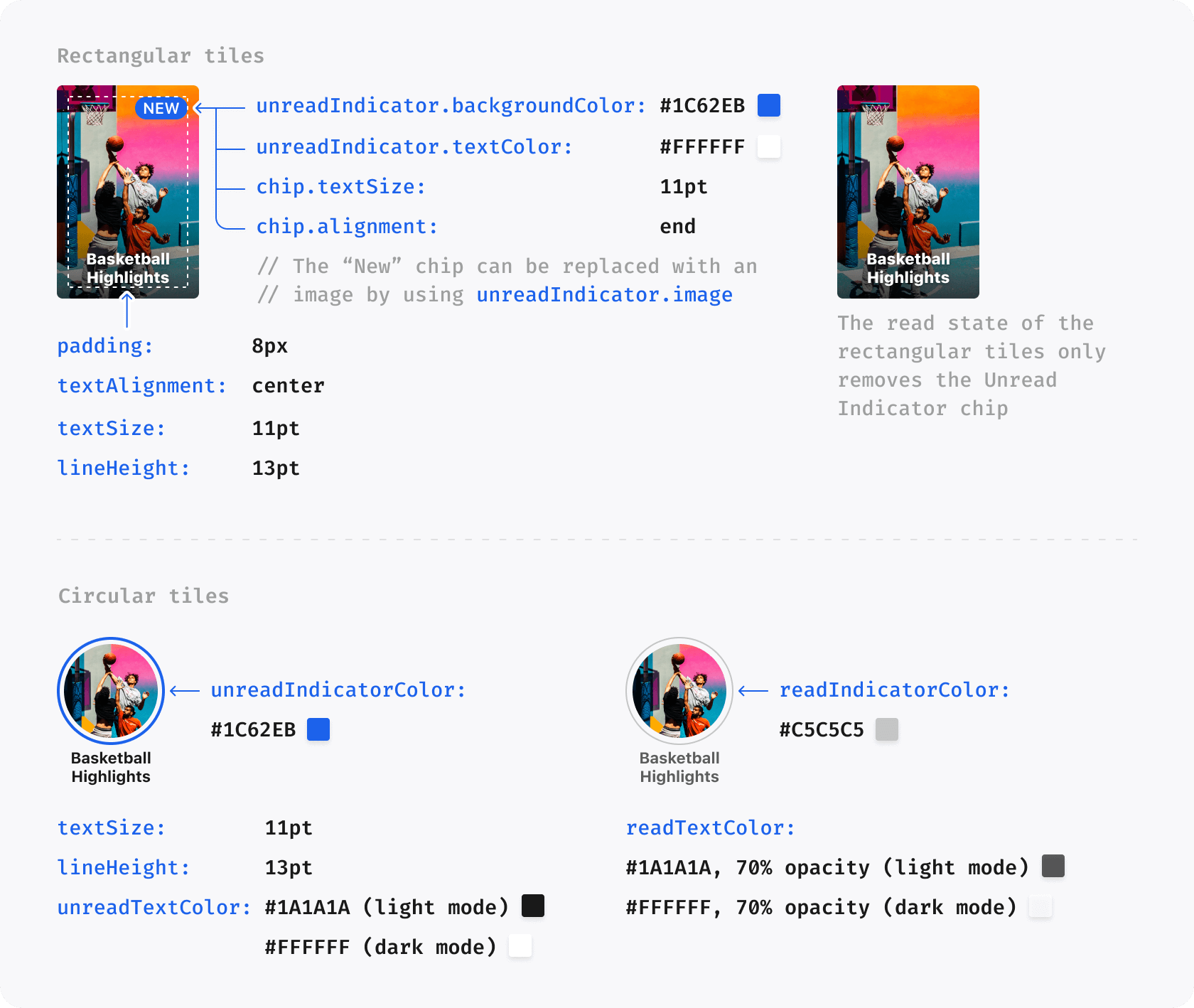
The tile artwork and shape depend on your tenant content and theme, but the populated row will look similar to the Story tiles in this visual:
Diagnose a Blank or Failed Result#
| Observable result | What it establishes | What to check |
|---|---|---|
Storyteller could not initialize |
The content request did not start. | Confirm the API key, tenant/environment, connectivity, and the underlying error in Xcode. |
Stories could not load |
Initialization succeeded, but the content request failed. | Inspect the returned error and Xcode logs; verify network access and tenant configuration. |
No published Stories were found |
The request succeeded with dataCount == 0. |
Confirm <CATEGORY_ID>, category assignment, publication status, schedule/expiry, and any targeting rules for <USER_ID>. |
success == true and dataCount > 0, but no tiles are visible |
Content loaded and the problem is presentation. | Confirm that the UIKit row has non-zero constraints or that the SwiftUI row has a non-zero frame. |
| The screen remains in a loading state | A request has not completed. | Confirm initialization is awaited, keep the delegate/action callback alive, inspect Xcode logs, and check connectivity. |
Go Further#
The Quickstart intentionally stops after the first reliable row. Continue with:
- Troubleshooting Storyteller on iOS when you need to distinguish app integration, content, tenant, provider, and SDK causes from an observable symptom.
- Storyteller List Views for grids, Clips rows, display limits, themes, and analytics context.
- Working with Users for external IDs, personalization, locale, and followed categories.
- Privacy and Tracking before selecting production tracking options.
- Custom Themes for tile and Player styling.
- The Showcase app's SwiftUI list model, SwiftUI action handling, and UIKit list example for richer, production-shaped examples.